SVG to PES Converter — Free Online for Brother Machines
Turn an SVG vector file into a PES embroidery file for Brother and Babylock machines. Free, private, and instant — your file is processed in your browser.
Convert SVG to PES Online — Free, No Software
Many crafters already own SVG files — from Cricut and Silhouette projects, Etsy design bundles, or their own logo. An SVG describes shapes, not stitches, so it can't go straight onto a Brother machine. This converter renders your SVG at the exact size you choose and digitizes it into a PES file with fill stitches, underlay, trims, and Brother thread colors.
Cut-file SVGs are often built from many thin, separate layers. Shapes thinner than about 1 mm can't be stitched cleanly, so simplify very fine detail before converting. For text, convert lettering to outlines in your design app first so the right font is used. Prefer raster files? Try PNG to PES or JPG to PES.
- Runs in your browser — nothing to install
- No account, no watermark, no limits
- DST, PES, JEF & EXP from one image
- Stitch preview before you download
How to Convert SVG to PES in 3 Steps
- 01
Upload your SVG
Drop a SVG image on the converter. Logos, text, and flat artwork work best — a solid or transparent background is removed automatically.
- 02
Convert SVG to PES
The converter reduces your image to thread colors and generates underlay and fill stitches for the size you choose — in a few seconds.
- 03
Download your PES file
Check the stitch preview, then download PES — or DST, PES, JEF, and EXP for other machines. Copy it to your machine and stitch.
From a Flat SVG to Real PES Stitches


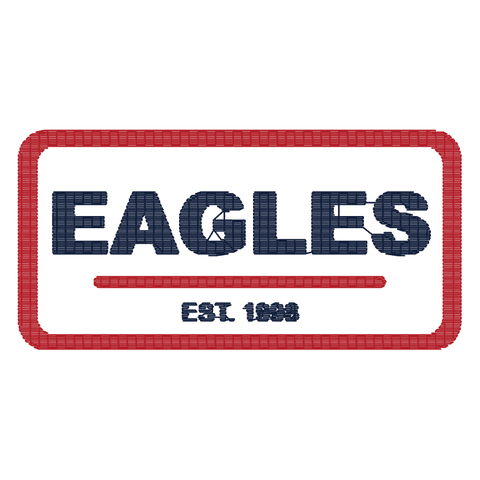
Drag the slider to compare. Each preview was produced by this converter: colors are reduced to thread colors, areas are filled with rows of stitches over an underlay, and the background is left unstitched.




Convert SVG to DST, PES, JEF & EXP
Every conversion gives you all four machine formats from the same SVG — pick the one your machine reads.
Brother & Babylock
The native format of Brother and Babylock home and semi-pro embroidery machines.
Tajima, Barudan, SWF, Ricoma & most commercial machines
Tajima's stitch format — the industry standard read by nearly every commercial and multi-head machine.
SVG to DST converterJanome & Elna
Janome's format for Memory Craft and other Janome and Elna embroidery machines.
SVG to JEF converterMelco & Bernina
Melco's expanded format, also read by Bernina embroidery machines.
PNG to EXP converterWhy Use Our Free SVG to PES Converter
SVG to PES in seconds
No upload queue and no waiting for an email — stitches are generated on your device as soon as you drop the file.
Private & secure
Your artwork never leaves your browser. There is no server copy to store, leak, or delete.
Always free
No account, no watermark, no credits, and no limit on how many files you convert.
Real machine-ready PES
Files include underlay, tie-in and tie-off stitches, trims, and color stops — not just a traced outline.
Which SVG Images Convert Best to Embroidery?
Automatic digitizing is great at flat artwork. Photos and fine detail still need a human digitizer — here is what to expect.
Converts great
- Logos and brand marks with flat colors
- Bold text and monograms (letters taller than ~5 mm)
- Cartoon, clip-art and icon-style illustrations
- Patches and badges with clear outlines
- Transparent backgrounds
Needs manual digitizing
- Photographs with soft shading and gradients
- Hairline details thinner than ~1 mm
- Tiny text below ~5 mm letter height
- Busy, textured backgrounds
- More than 8 distinct colors
SVG to PES and Every Other Embroidery Converter
Every converter runs the same engine and gives you all four formats — each page is tuned for one image type and machine.
Convert to DST
Tajima, Barudan, SWF, Ricoma & most commercial machines
Convert to PES
Brother & Babylock
- PNG to PES converter
- JPG to PES converter
- SVG to PES (this page)
Convert to JEF
Janome & Elna
Convert to EXP
Melco & Bernina
Which Embroidery Format Does My Machine Use?
Pick the file that matches your machine brand. Not sure? DST is read by almost every commercial machine, and PES by most home machines. See our DST vs PES vs JEF comparison for details.
| Machine brand | File format | Notes |
|---|---|---|
| Brother | .PES | All Brother home and semi-pro machines, e.g. PE800, SE1900, NQ1700E, PR series. |
| Babylock | .PES | Same format as Brother — PES works on every Babylock embroidery machine. |
| Janome / Elna | .JEF | Memory Craft series and Elna embroidery machines. |
| Tajima, Barudan, SWF, Happy, ZSK | .DST | The industry standard for commercial single- and multi-head machines. |
| Ricoma, Melco | .DST / EXP | Ricoma reads DST; Melco reads EXP and DST. |
| Bernina | .EXP | Bernina machines accept EXP (and their own ART format). |
| Husqvarna Viking / Pfaff | .VP3Not yet | VP3 isn't available here yet. Most of their software (e.g. mySewnet) can import DST or PES. |
| Singer | .XXXNot yet | XXX isn't available here yet. Many newer Singer models and their software also open PES or DST. |
Ready to convert your SVG to PES?
Free, instant, and private — your image never leaves your browser.
Embroidery Digitizing Guides
How to Convert PNG to DST: 3 Methods Compared
Auto-digitizing, manual digitizing, and online converters — a breakdown of every approach and when to use each.
Read articleDST vs PES vs JEF: Which Format Is Right for You?
A clear comparison of the three most common embroidery formats — what machines accept each and how to choose.
Read articleStitch Density: Why It Matters and How to Set It
Too dense and the fabric puckers. Too sparse and coverage is poor. Learn exact density ranges for every fabric.
Read articleUnderlay Stitches Explained: Types, When to Use Them
Edge walk, zigzag, and grid underlay — the foundation of a clean embroidery design explained.
Read articleEmbroidery File Formats Explained: DST, PES, JEF & More
A complete reference to every major embroidery format — what they contain and which machines use them.
Read articleWhy Free PNG to DST Converters Often Fail
Auto-trace converters can't handle pull compensation or underlay. Here's what goes wrong and how to fix it.
Read article